
With the fast pace of the experiential industry, it’s hard to find time to use Global Illumination to create more realistic lighting environments. Most lighting vendors have IES files that you can bring into your 3D model to replicate an exact fixture, but if Global Illumination takes too much time, you can still utilize these lights to create a more realistic light cone. Here are some samples of real wall washers in action. See the primary and secondary cones of light? This is what we are after.


Compare the two renderings below. One uses IES lights and the other uses standard spot and omni lights. The difference is slight, but the more complex cone of light, the fall-off, and the spread of the IES lights lend a little more realism to the render. These were both processed with a standard renderer in Cinema 4D and only took 5 seconds for an HD (1920 x 1080 pixel) render.


In addition to the wall washers, the pendant light is using an IES light (60-watt bare bulb) or a standard omni light. In this case, the pendant shade is what causes the shadow to fall on the two walls so there is little difference there. The fall-off is also nearly the same.
Speaking with an architectural lighting engineer, this double cone is not desired in an actual install situation as it means you have chosen the wrong fixture or placed it in the wrong location. However, the use of exposed MR-16 or other stem lights that place the light fixture close to the surface tend to create this effect naturally due to the close proximity to the lit surface.

Standard Spot Light Detail

IES Spot Light Detail
The three items to note are:
You need to have your own studio or trade show hall lighting environment to take advantage of this trick. Otherwise, the only light in the scene would be the IES lights you added and since there’s no Global Illumination, the renderer doesn’t calculate these lights bouncing off other surfaces.
Since you are not calculating Global Illumination, the full Candle power (Candela Intensity) may be too high or too low depending on your surrounding lighting scheme. So, you may need to adjust the intensity in Photometrics.
You can affect the color of the light and intensity, but all the other functions are usually overridden by the Photometric information contained in the IES file.
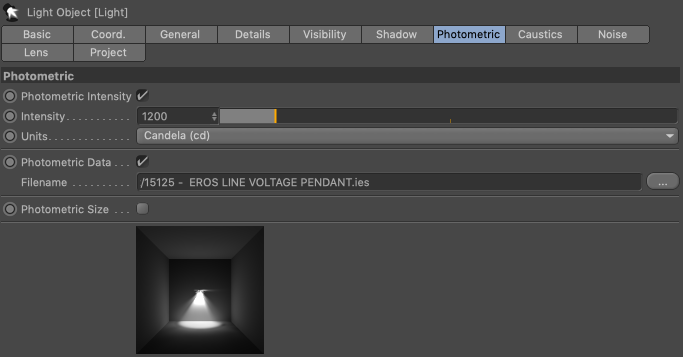
Photometric details of the stem light

Photometric details of the 60w bare bulb
The screen shots above show the photometric details as they appear in Cinema 4D, so your details may look different if you are using a different 3D modeling and rendering application.
It’s subtle, but if you find the right IES files, this can make a big difference in bringing some life to your renderings.
Logo Assets via vecteezy.com
Furniture 3D models via Cort Event
60w LED Lightbulb IES file via Cree Lighting
Wall Washer IES file via Tech Lighting
 Experiential Ideas