
Last week, Adobe introduced its Firefly AI based Generative Fill tool in Photoshop. This is great news since Firefly itself is only available through invites. I spent about an hour on reviews and tutorial videos and then another few hours running Generative Fill through it’s paces. If you want to try the new tool out, you have to download Photoshop Beta.
Below are the tips and tricks I learned along with the videos I found helpful.
Generative Fill differs from many of the other AI image generators as it does not comb the entire web. Instead, it only uses Adobe Stock for its resources. Although this may limit the images the AI can reference to generate potential results, it overcomes any of the copyright issues that might face the other image generators (like Dall-E and Midjourney)

Generative Fill is non-destructive process that adds new layers with masks for each generative fill. Each generated layer has several images to choose from. In the properties panel it indicates what the prompt was for that layer. You can even go back and change the prompt or just hit Generative Fill again to get more results. Keep in mind, that the results are saved as part of the Photoshop files so the more generative layers with more results will increase file size.
Generative fill goes out to the cloud for the AI generation so the processing time can be a little slow. Rumor has it that when Generative Fill becomes as standard Photoshop tool, it will be pay to play and require you to purchase credits in order to use Generative Fill. I think this is likely to cover the costs of the AI servers, but it’s a bummer that like Tesla’s autopilot feature and BMW’s heated seats, that you have to pay a fee to activate something that is already part of the software.
Selections
You must have a selection area before “Generative Fill” will appear
-
Selection area matters a lot
-
For example, if you want to place a cat on a couch, a elliptical selection is better, not a long tall rectangle.
-
-
Photoshop replaces ALL pixels inside the selection
-
Be very accurate about what you want updated
-
For example, if you want to replace hair on a subject, just select the hair and not the entire face
-
-
Use subtract from mask to reveal areas after image is generated
Removing Objects
-
Make a selection around the element you want to remove, leave the prompt area blank and then click “Generative Fill”
-
Selections matter here as well
-
To get better results, remove elements one at a time instead of removing all of the image at once.
-
If there is a subject in front of a wall and their shadow on the ground, it may require removing each element separately to get the best results
-
-
If some areas look funny, you can select those portions and run a new Generative Fill to replace just that section
-
Prompts and Guidelines
-
Be descriptive, a noun and a verb to create a phrase
-
Unlike the other AI generators, you cannot indicate camera settings. Generative Fill leverages the exist lighting conditions of the image.
-
Sees “Weed” as marijuana, can’t distinguish that you want weeds
-
“UFO” is ok “UFO landing” violates guidelines
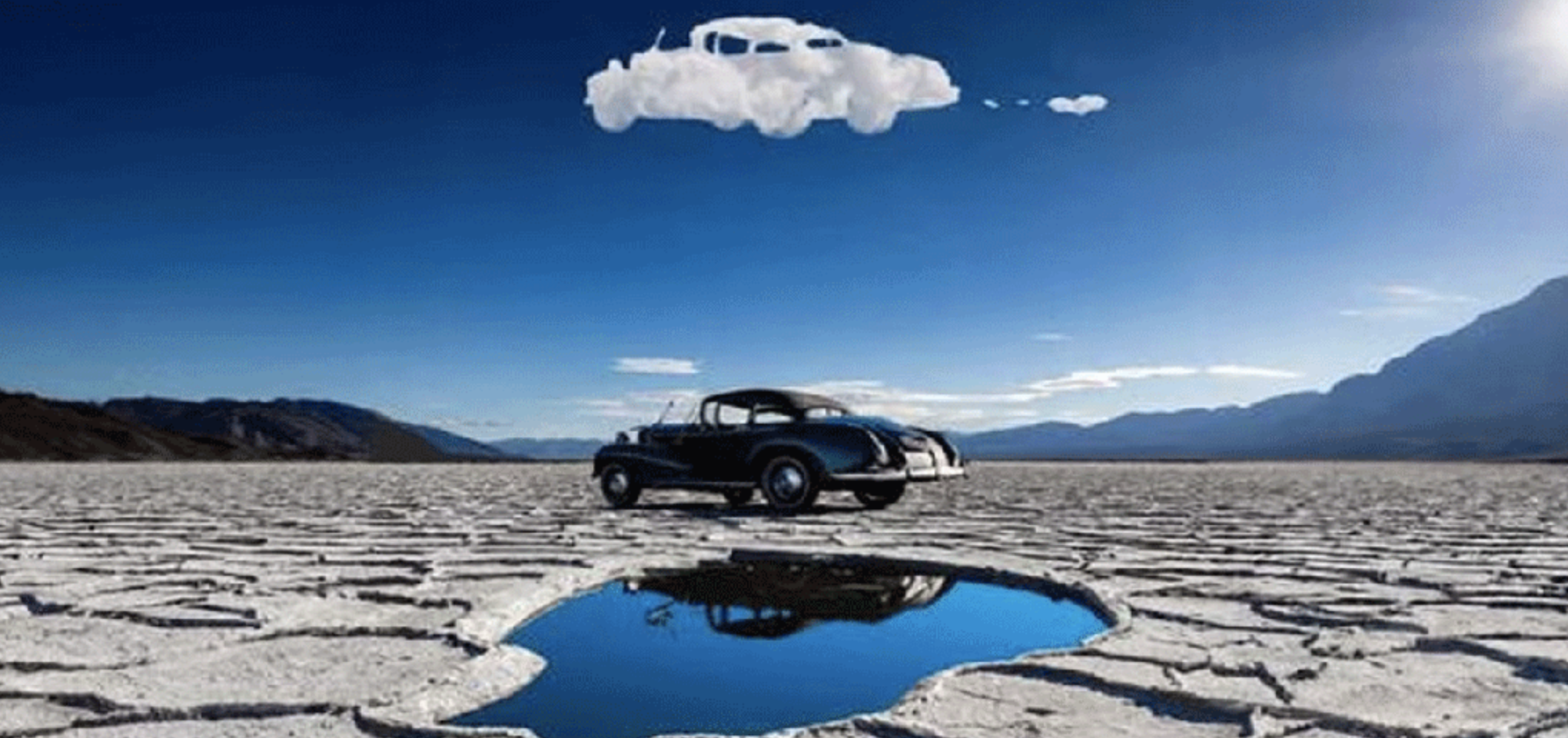
Expanding photos
-
Selections matter here as well
-
To get better results, expand on portion at a time instead of expanding all of the image at once.
-
If some areas of the expansion look funny, you can select those portions and run a new Generative Fill to replace just that section
-
-
If you just want it to expand the image, leave the prompt box blank and hit “Generative Fill”
-
This is like content aware fill on AI steroids
-
-
If you want it to expand, but alter some details, it will combine the two.
-
For example, if it is a forest scene you can type in mountains and a lake and it will transition from the forest scene to a lake and mountains as it expands.
-
-
Leave some of the original image in the selection before expanding
-
Some of the videos say that it is helpful to feather it a bit as well
-
Limited to 1080px wide (you can do one side and then the other to get around this as it will stretch pixels if the expand is larger than 1080px)
-
Vertical expand with people can be troublesome
Don’t like the results?
-
Hit generate again in the layer you just created
-
Change the prompt and click Generative Fill again and get new results (the old results remain as well)
Limitations
Doesn’t seem possible to “stylize” an image. I.e. make it a cartoon or change the lighting. It seems to change the entire image beyond recognition
-
It pulls from images from Adobe Stock, but replaces the subject instead of altering the subject
-
You can add sunglasses (just select the area where the sunglasses should be), but if you select an entire face or subject it will replace it
-
-
Cannot use prompts like “make bigger”
-
Currently not for use in commercial projects
 Experiential Ideas
Leave a comment